
Router Setup - Getting Started
In the Box
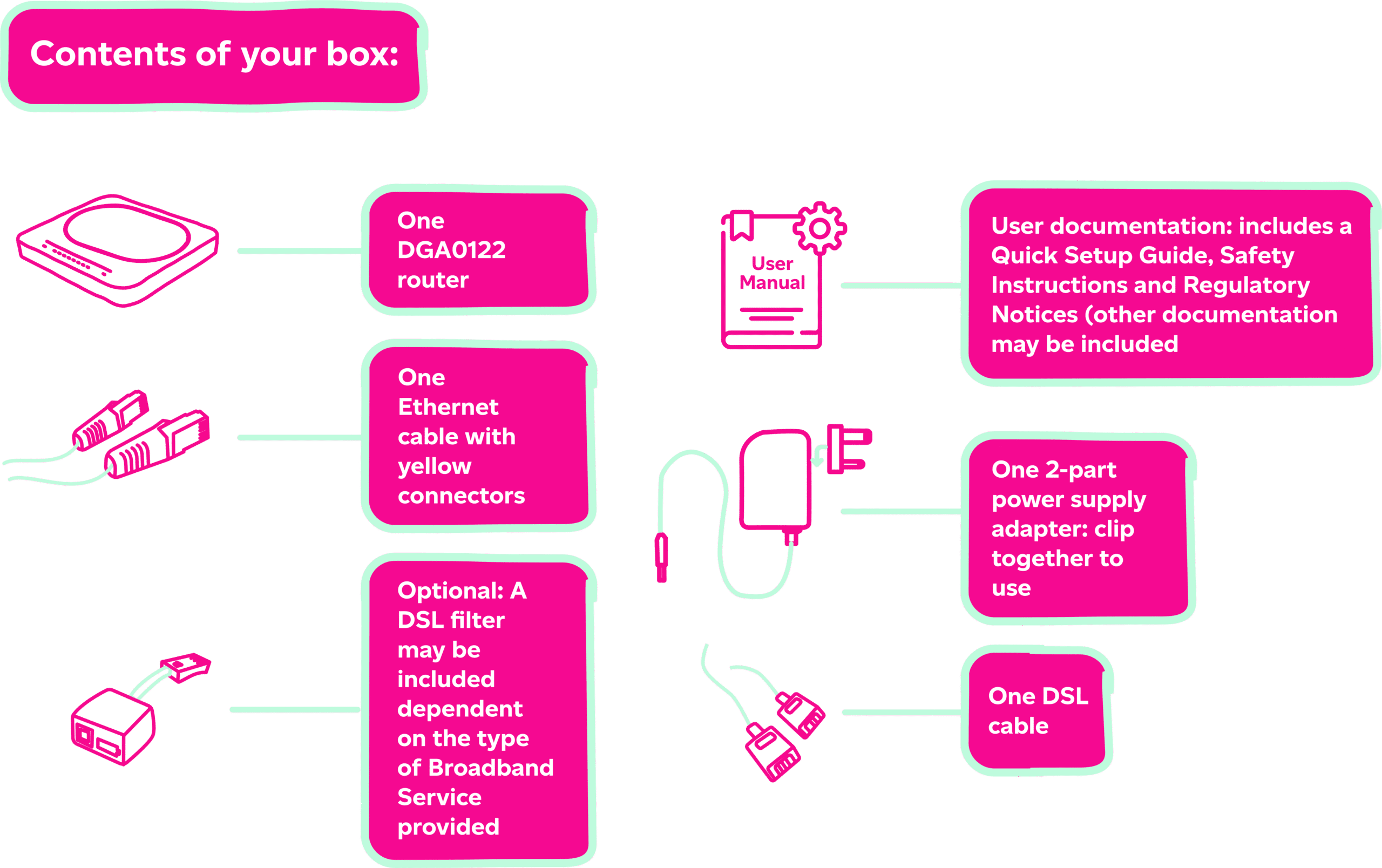
Before setting up your new router, please take the time to familiarise yourself with the contents of the box and ensure that all necessary parts are included. If you find that any parts are missing, please get in touch at 03330 040341.
Router Overview
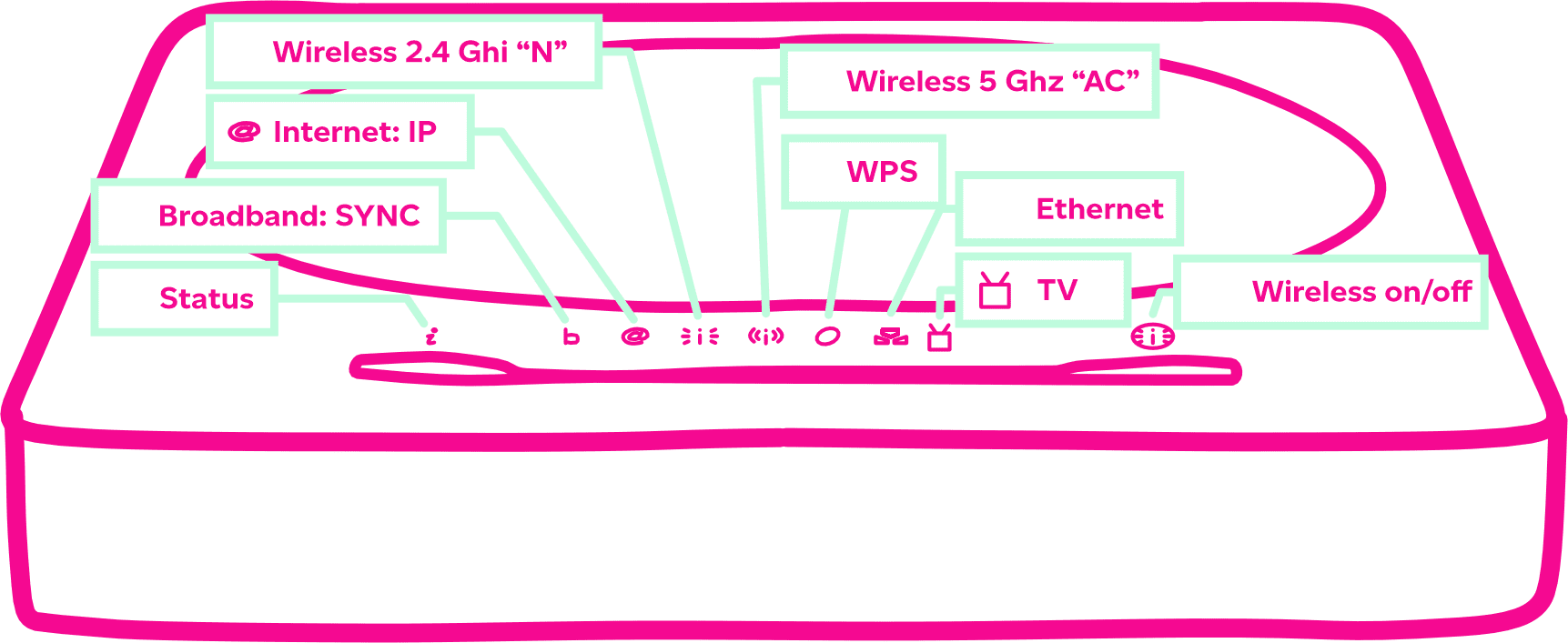
The DGA0122 is a dual band broadband gateway that supports Wi-Fi 4 (11n) on 2.4GHz and Wi-Fi 5 (11ac) on 5GHz. The DGA0122 supports Wi-Fi EasyMesh. This feature allows the addition of a compatible Wi-Fi EasyMesh Extender such as the Technicolor OWA0131.
About Passwords
Admin Password
If you require access to your router admin section, please ignore any admin login details printed on the back of your router or on the card included in the box.
For your login credentials please contact our Customer Service Team via phone on 03330 040 341 or by email at connectivitycs@everflowutilities.com
Wireless Password
If you are connecting using a wireless device, you can connect either using WPS pairing or by manual configuration using the wireless password. The default wireless password is 16 characters. If you decide to change this password, we recommend a strong password of at least 16 characters.
Note: sharing this password with others will allow them to access your network.
Router Quick Start Guide – Technicolor DGA0122
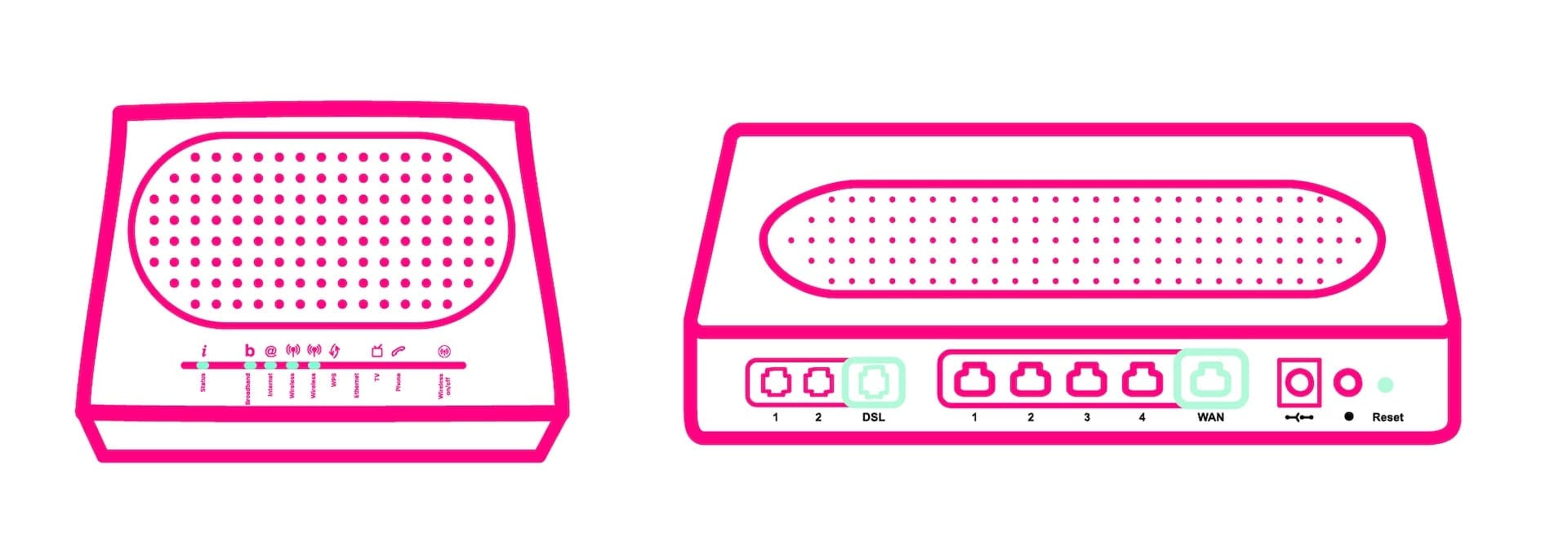


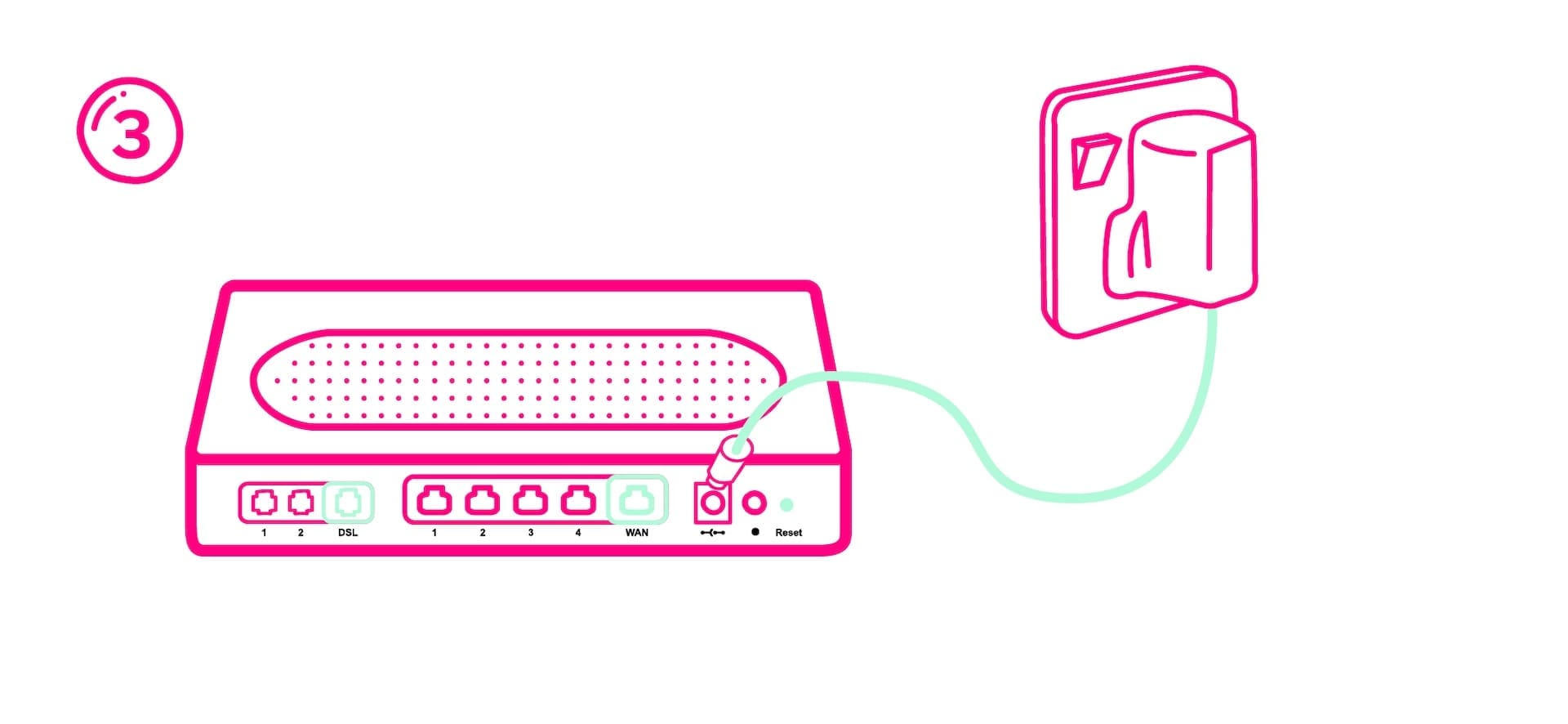
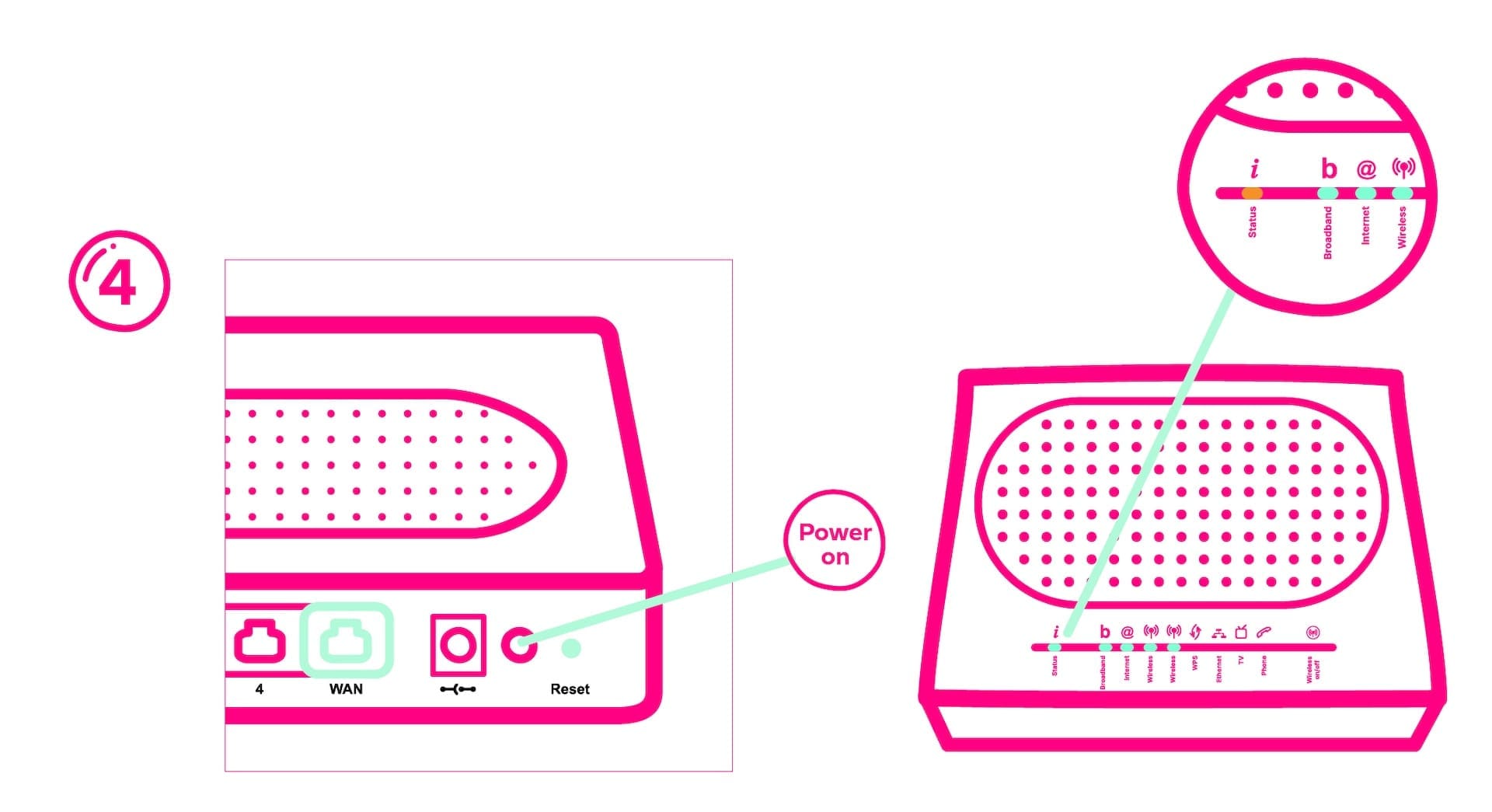
6. See your info pack or router card for further details such as Wi-Fi password, etc.
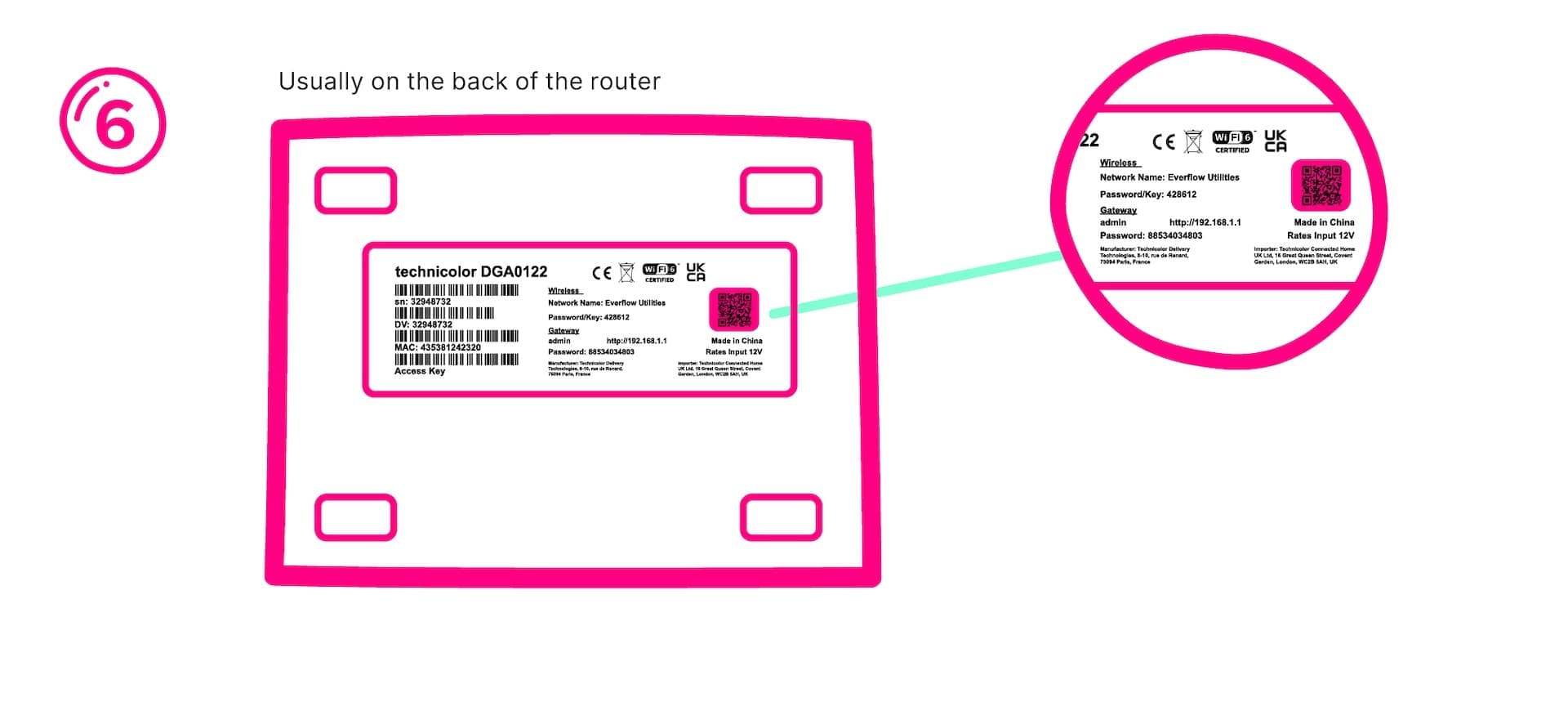
Connecting Your Devices
Follow these instructions when connecting your mobile devices.
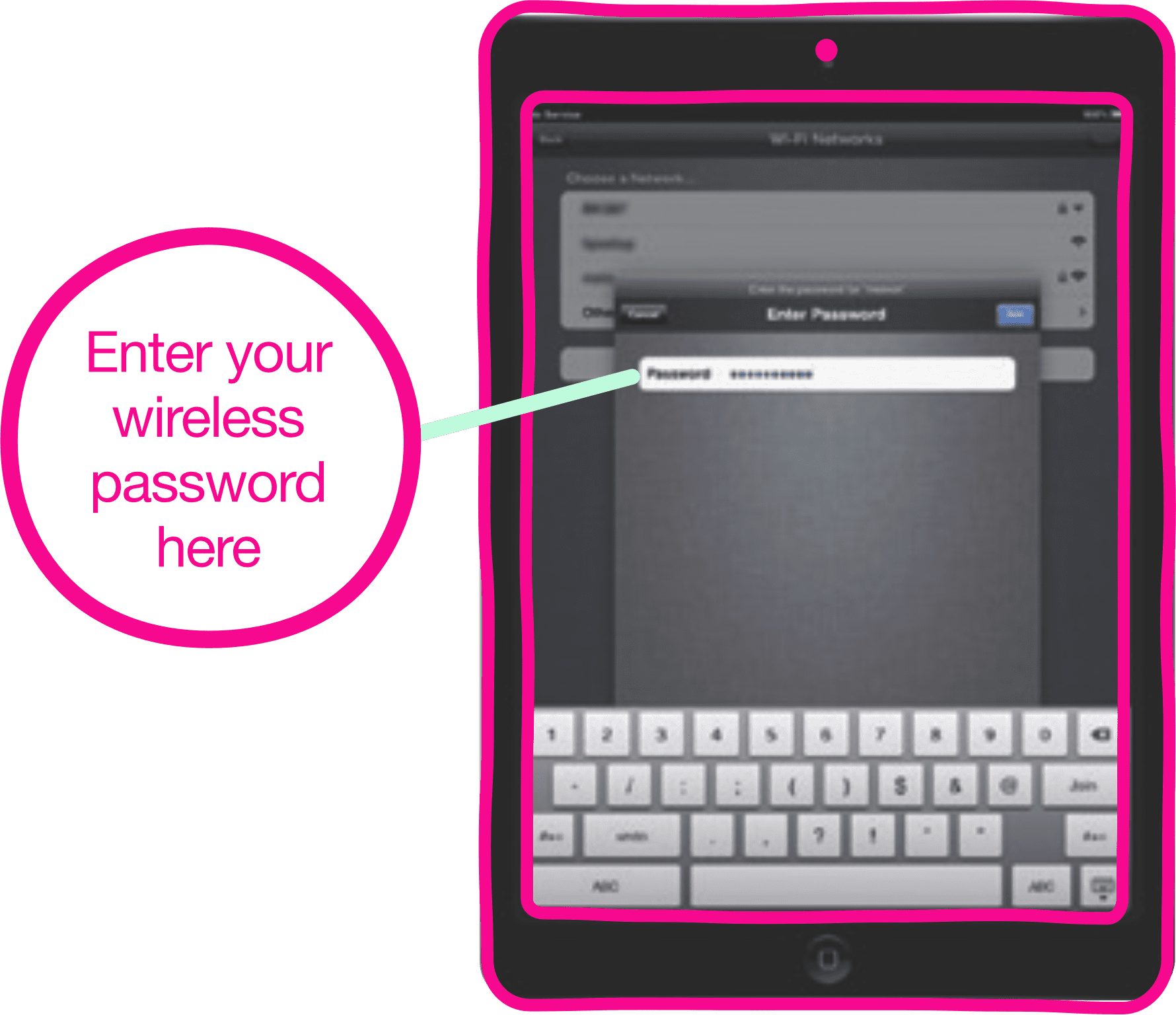
iPhone and iPad
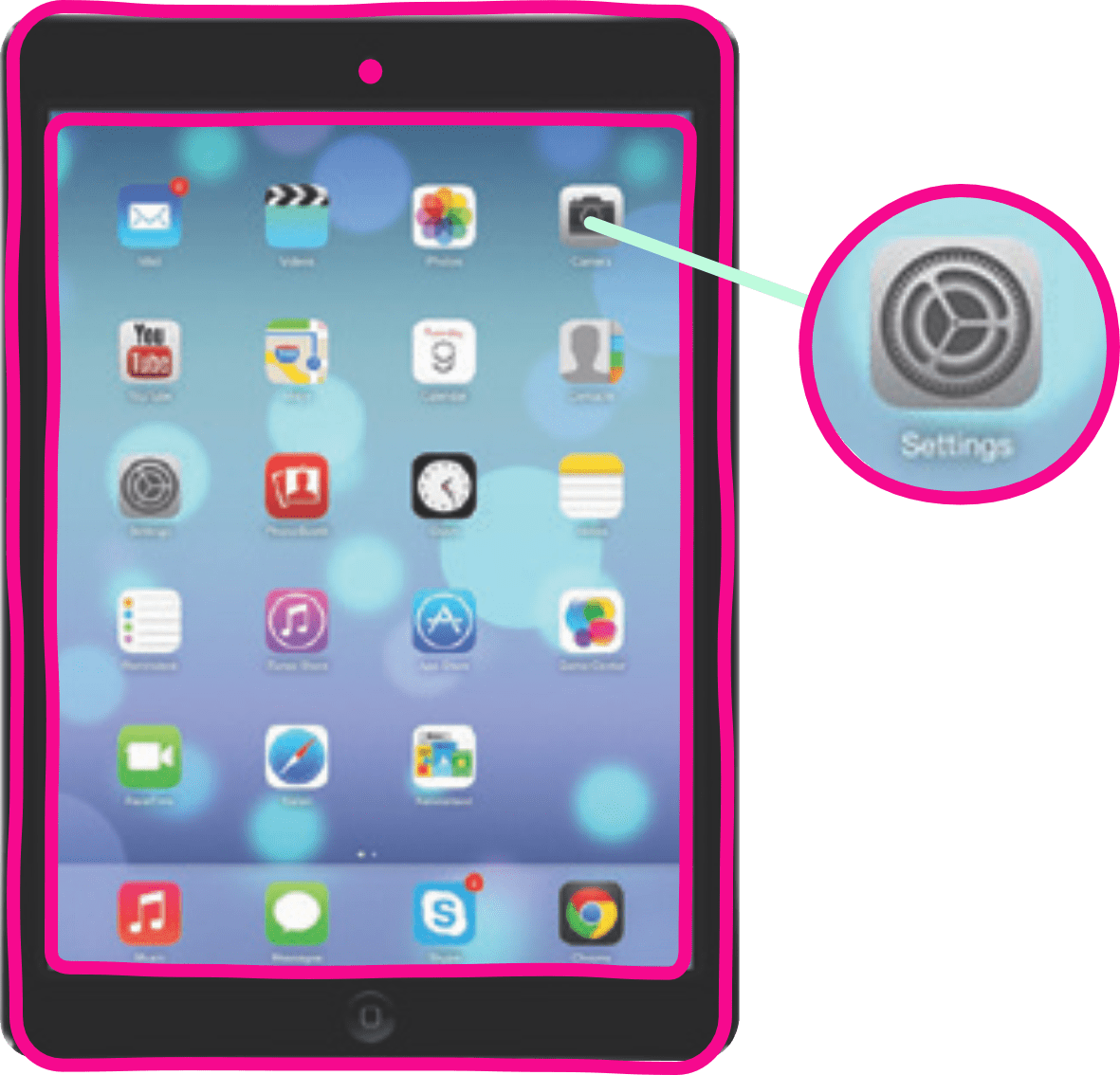
1. Tap the settings icon on your home screen
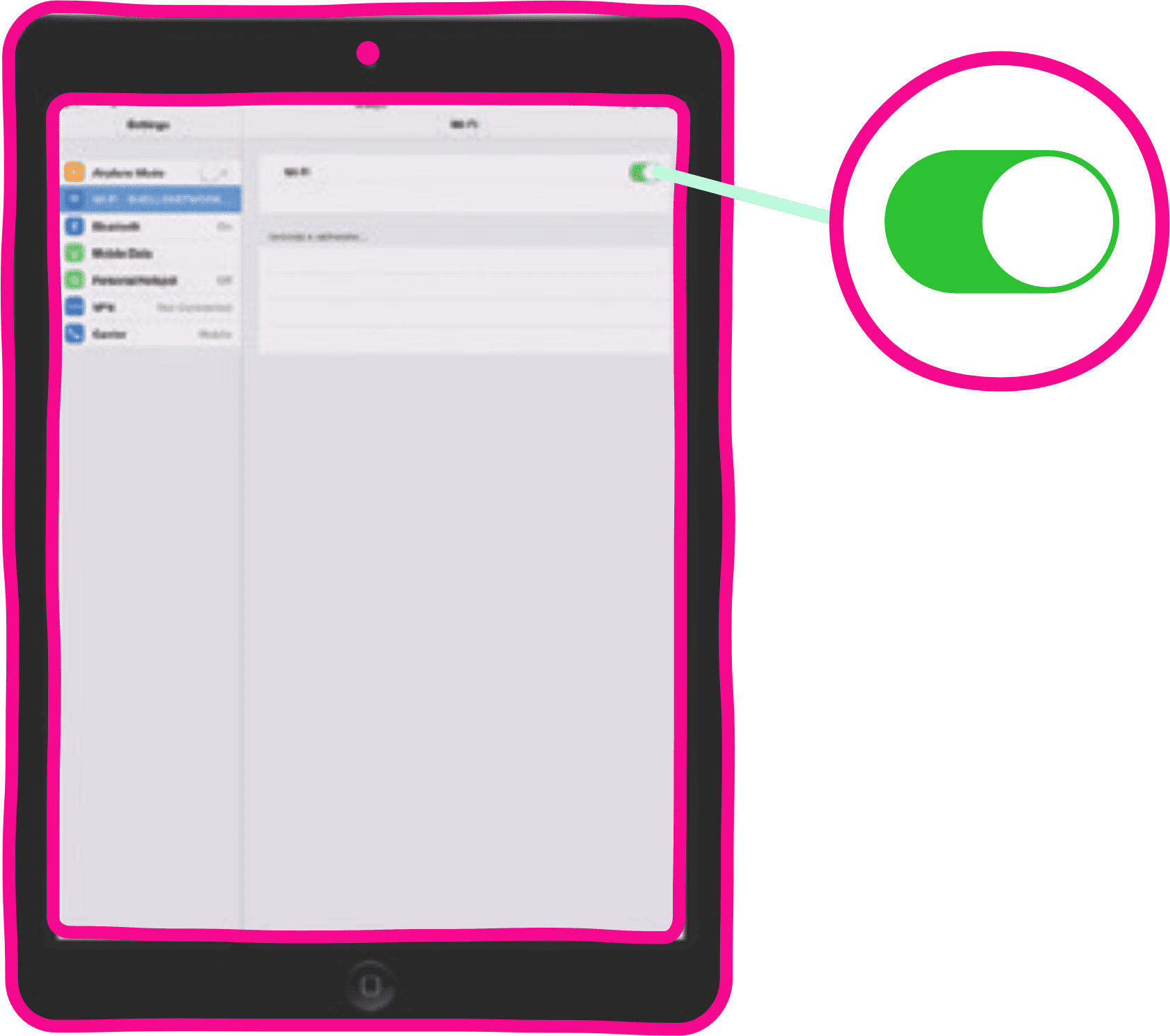
2. Ensure Wi-Fi is switched on and select your wireless network from the list shown.
3. When prompted enter your wireless security key exactly as shown on your Keep Me card. Then select “Join”.
Android
1. Tap Apps icon on your home screen then tap the settings icon.
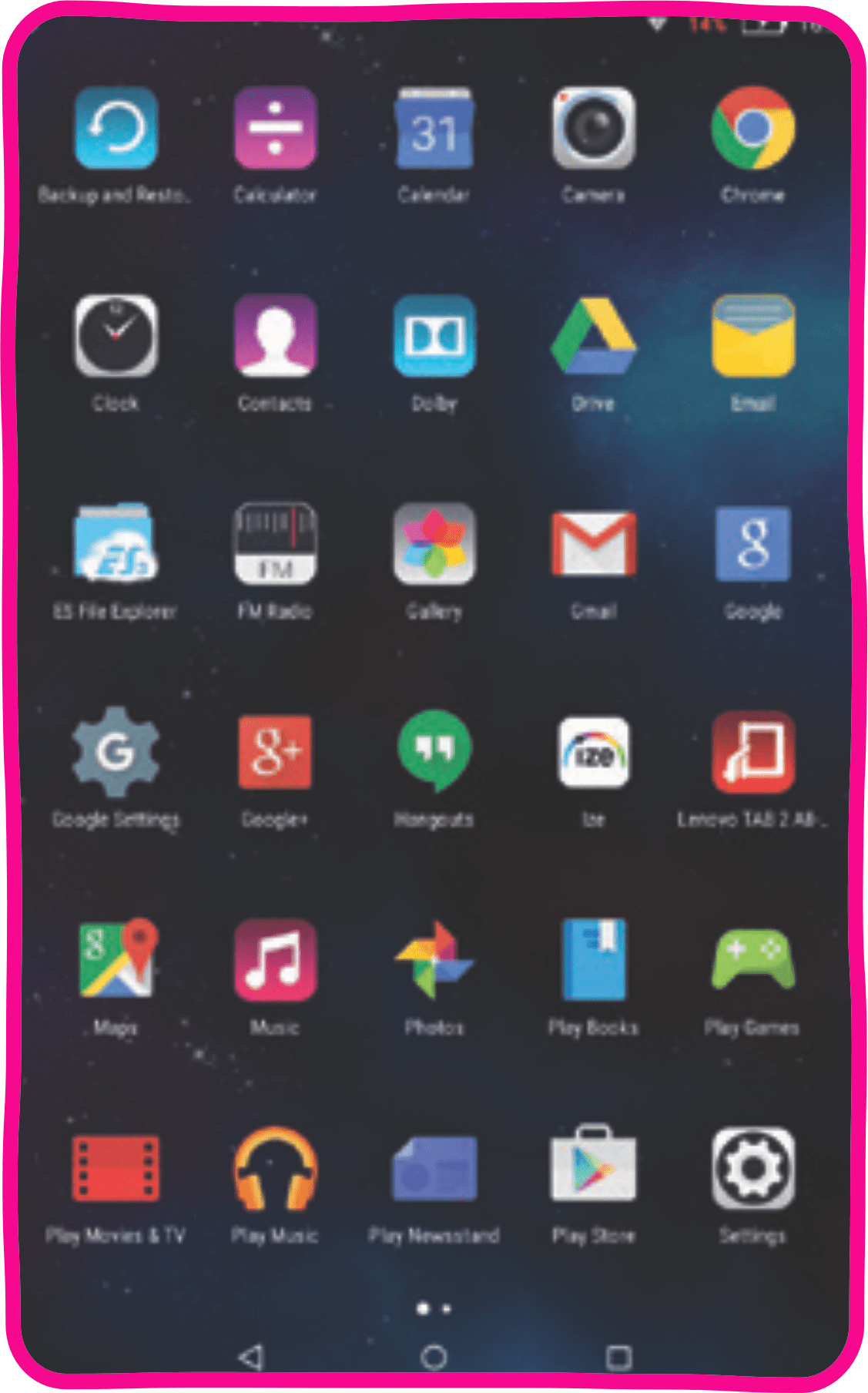
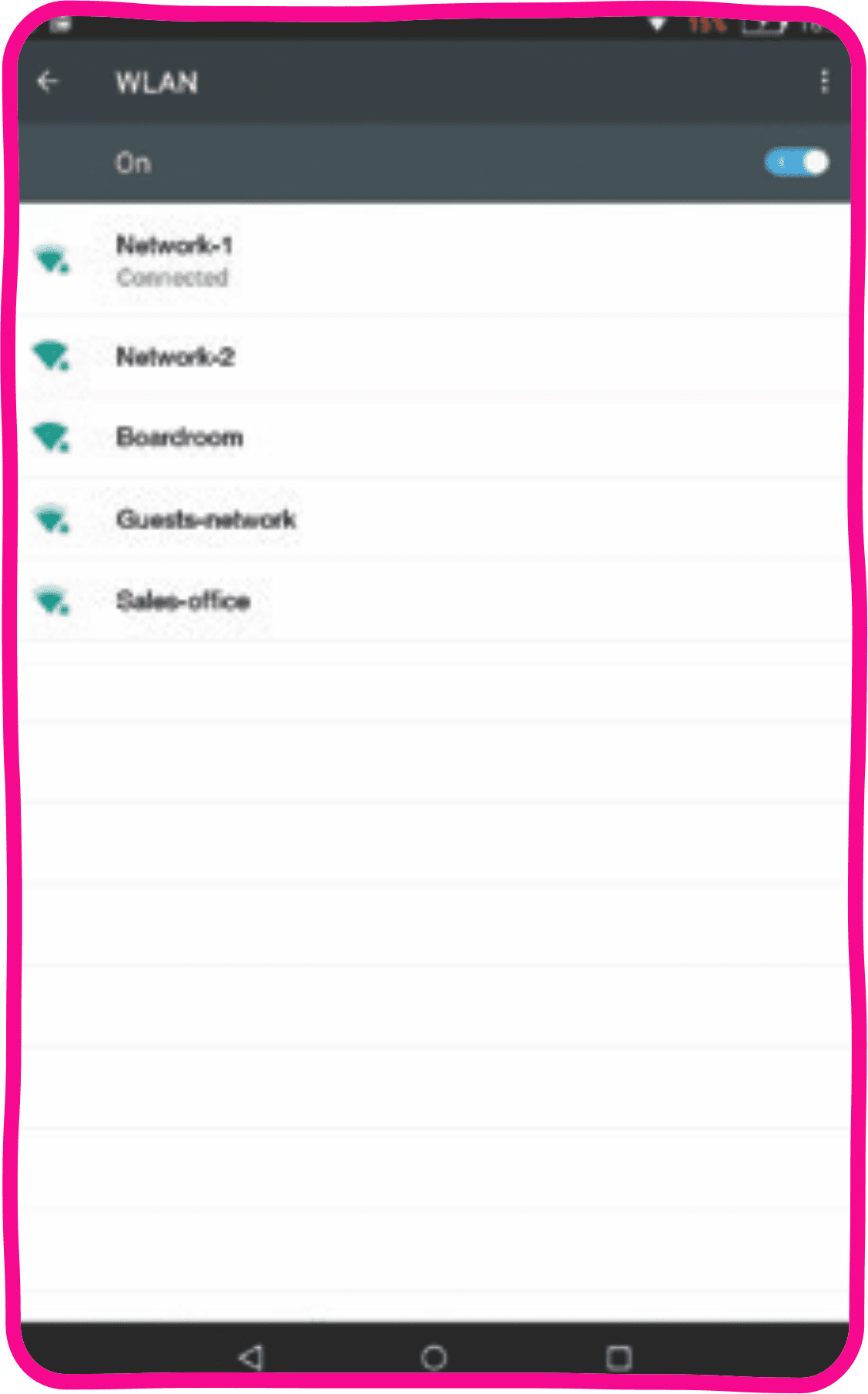
2. Select Wi-Fi and ensure Wi-Fi is ON. Next, select your Wi-Fi network from the list.
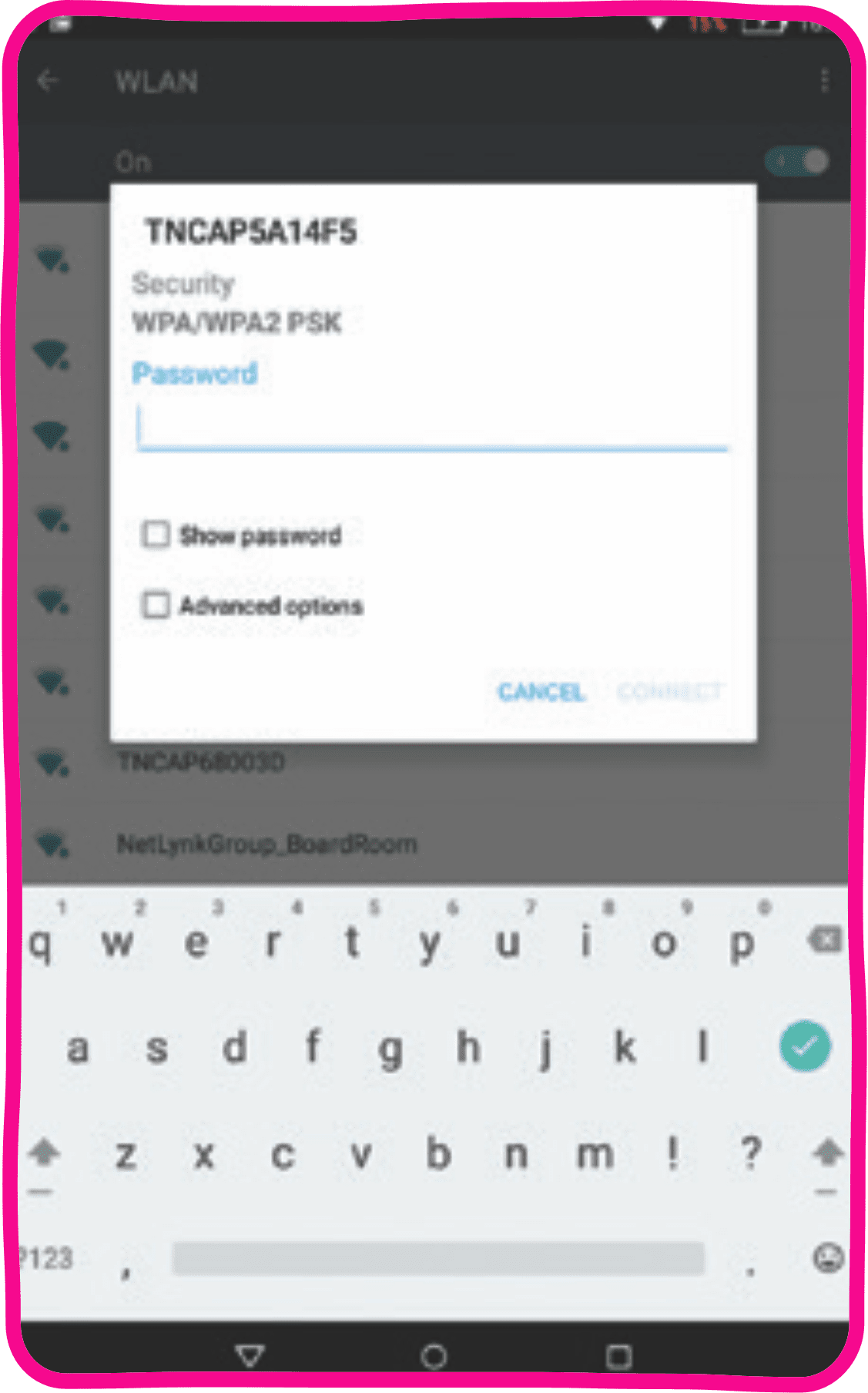
3. When prompted, enter your wireless security key exactly as shown on your Keep Me card. Then select “Connect”.
Connecting to a PC
Windows 10
1. Click on the wireless icon in the bottom right hand corner of the screen.
2. Select your wireless network from the dropdown list.
3. Click connect on the network you selected.
4. You will then be asked for the network key, enter this and click next.
5. You may then be asked if you want your PC to be visible on the local network, choose the relevant option and press yes.
6. After a few moments the network should now display connected.
7. If you don’t type the key in correctly, you will be given the following message
8. Re-enter the key at this stage and if correct the network will again connect.
You should now be connected to your wireless network.
