Zyxel DX3301 router setup – getting started
Before setting up your Zyxel DX3301 router, please ensure that you have the Zyxel DX3301 router, the power adapter, the ethernet cable and the DSL cable. If any parts are missing, please get in touch at 03330 040341.
Understanding the front lights

Rear ports and connections
- Power Button – turn on and off
- Reset – Press in and hold down to reset the router.
- Power jack – plug power unit into here
- Phone 2 & 1 – used for customers own analogue devices with direct connection
- USB port – Used for back up (4G)
- Ethernet ports – used to connect devices (such as pc’s, grandstreams etc)
- Wan port – used to connect to FTTP ONT via ethernet cable
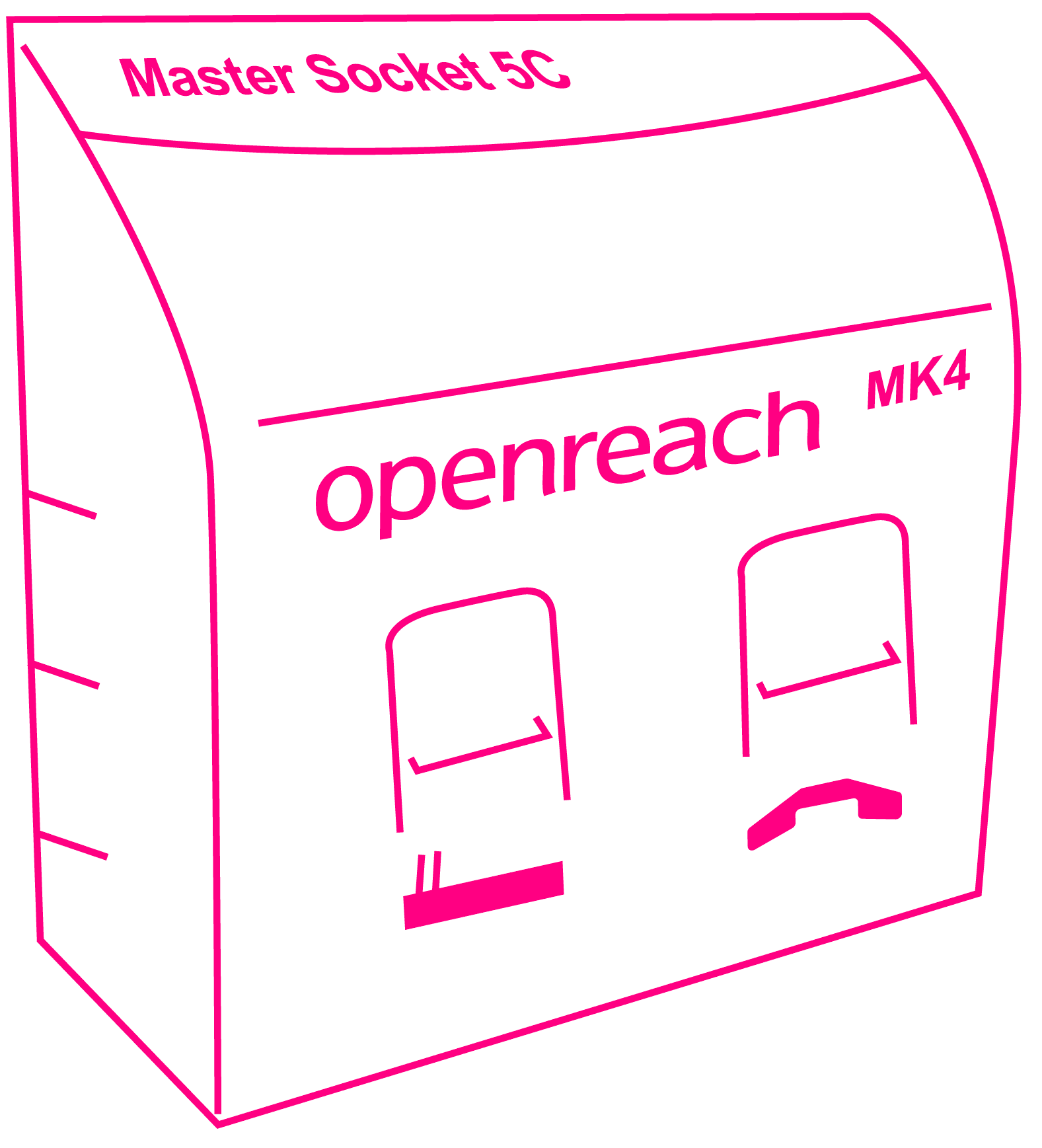
- DSL Port – Used to connect to BT master socket via a DSL Cable.
- Wifi – turns WiFi on and off (hold for 2 seconds)
- WPS – Press the WPS button for more than 5 seconds to set up a device via WPS

FTTP connections
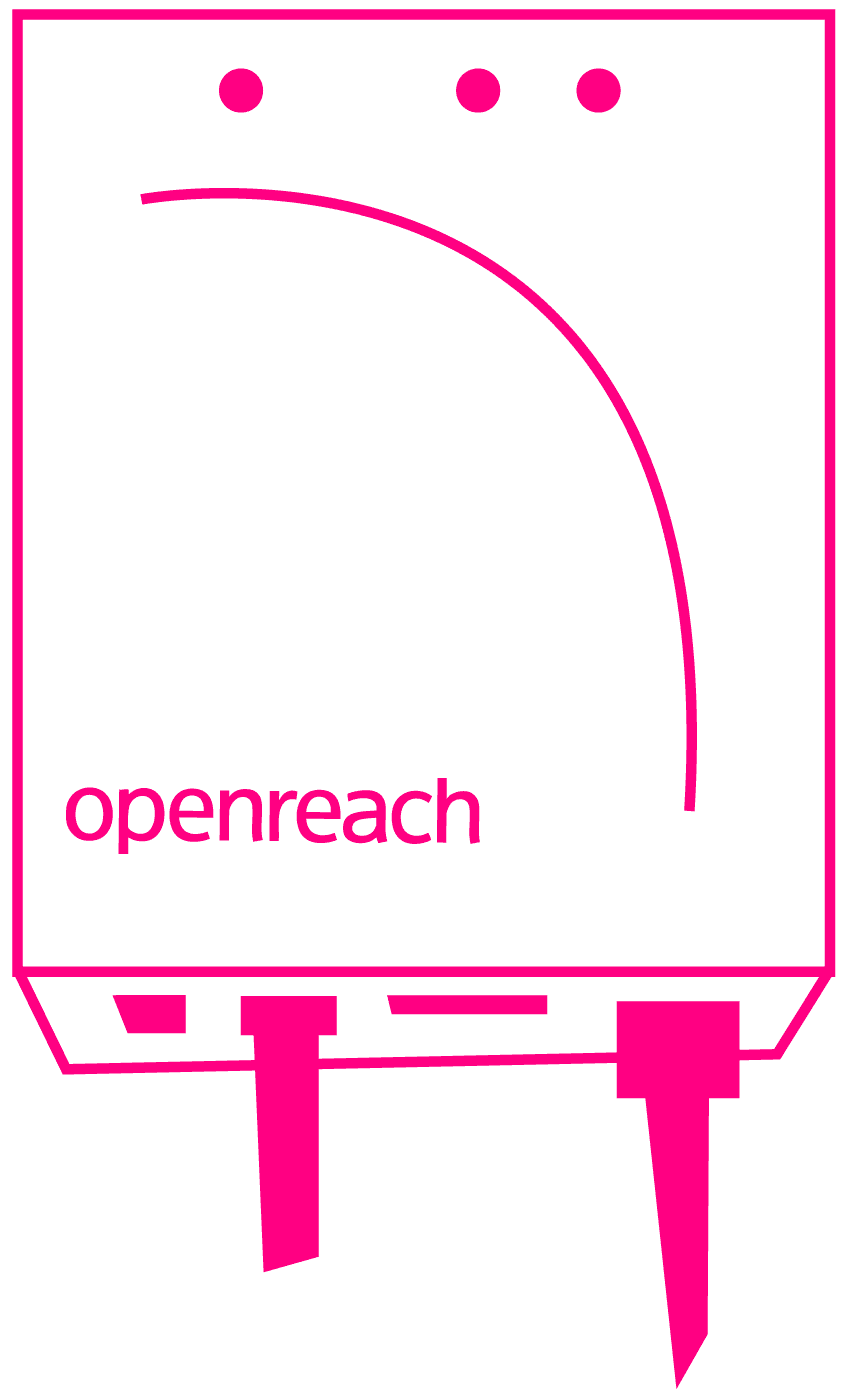
Check the router is connected from the WAN port to the ONT. Your ONT is the white wall-mounted box that manages your fibre connection.
You should normally see:
- Power light
- Network light
- LAN light
These should all be green.
If the LOS light is red:
- Turn the ONT off and back on
- Allow the connection time to restart
If the ethernet cable feels too large for the ONT port, apply gentle pressure as the port expands to accept the connector.
SOGEA connections
Check the router is connected from the DSL port to the BT master socket using the grey DSL cable.
Depending on your socket type:
- Connect directly into the data socket, or
- Use a microfilter and connect to the ADSL/data side
If multiple sockets exist on site, test each one as extension sockets may not provide service. Where needed, you can also test using the internal test socket.